



Last updated: June 2026
Introduction
In today’s data-driven world, efficiently moving data between different formats and storage systems is crucial. Parquet files, known for their efficient columnar storage format and compression capabilities, are widely used in big data analytics. SQLite, on the other hand, is a popular choice for embedded databases and local applications due to its serverless architecture and reliability.
However, transferring data from Parquet files to SQLite traditionally involves complex processes:
- Writing custom code to handle Parquet file reading
- Managing data type conversions
- Implementing efficient bulk loading mechanisms
- Dealing with schema differences
- Handling large datasets with limited memory
Enter Sling: a modern data movement tool that simplifies this process dramatically. Sling provides an intuitive interface for transferring data between various sources and destinations, including Parquet files and SQLite databases. Key advantages include:
- Automated schema mapping and creation
- Efficient bulk loading capabilities
- Built-in data type conversion
- Memory-efficient processing
- Simple command-line interface
- Flexible configuration options
In this guide, we’ll walk through the process of using Sling to efficiently migrate data from Parquet files to SQLite databases. Whether you’re working with small datasets or large-scale data migrations, you’ll learn how to leverage Sling’s features to streamline your data pipeline.
Parquet vs SQLite: Which Should You Use?
Before moving data between them, it’s worth being clear on what Parquet and SQLite actually are. They solve different problems, and the choice between them is rarely either/or.
Parquet is a columnar storage format. Each column is stored together on disk, which means a query that touches three columns of a hundred-column file reads only those three. That layout compresses extremely well and makes full-column scans fast, which is why Parquet is the default for data lakes and analytical tools. What Parquet is not is a database. A Parquet file has no query engine, no indexes, and no concept of updating a single row. It is a file you read, usually in bulk.
SQLite is an embedded database. The entire database is a single file, but unlike Parquet that file carries a full SQL engine: indexes, transactions, constraints, and fast row-level reads and writes. SQLite is built into countless applications precisely because it needs no server and runs anywhere. The trade-off is that it stores data row by row, so wide analytical scans over millions of rows are slower than the same scan over Parquet.
Here is how the two compare on the dimensions that usually drive the decision:
| Dimension | Parquet | SQLite |
|---|---|---|
| Storage model | Columnar file | Row-oriented embedded database |
| Query engine | None (needs DuckDB, Spark, pandas, etc.) | Built-in SQL engine |
| Row updates / writes | Not supported (rewrite the file) | Full transactional read/write |
| Indexes & constraints | No | Yes |
| Compression | Excellent (per-column) | Modest |
| Best at | Large analytical scans, archival, data lakes | Application data, offline apps, transactional reads |
When to use Parquet: the dataset is large and append-mostly, you read it with analytical tools, and storage size and column-scan speed matter more than updating individual rows. This is what columnar storage is built for.
When to use SQLite: an application needs to read and write individual rows, enforce constraints, run transactions, or query data offline without a server. This is what an embedded database is built for.
In practice many pipelines use both. You keep bulk history as Parquet in a data lake and load a working slice into SQLite so an application can query and update it. That is exactly the move this guide automates: taking a Parquet export and turning it into a queryable SQLite database.
Can SQLite Query Parquet Directly?
A common follow-up is whether you can skip the load and just query the Parquet file from SQLite. SQLite has no native Parquet reader, so the answer is no without an extension. If your goal is purely to run analytical SQL over Parquet without importing it, DuckDB is the better fit because it is columnar and can scan Parquet files in place. If instead you need a portable, transactional database that an application reads and writes, loading the Parquet data into SQLite, which is what the rest of this guide covers, is the right path.
Installation
Getting started with Sling is straightforward. The tool can be installed on various operating systems using different package managers. Let’s go through the installation process step by step.
System Requirements
Before installing Sling, ensure your system meets these basic requirements:
- Operating System: Linux, macOS, or Windows
- Disk Space: Minimum 100MB for installation
- Memory: Minimum 512MB RAM (recommended 1GB+ for larger datasets)
- Internet connection for installation and updates
Installing Sling
Choose the installation method that best suits your operating system:
# macOS / Linux
curl -fsSL https://slingdata.io/install.sh | bash

# Windows
irm https://slingdata.io/install.ps1 | iex

# Python
pip install sling
After installation, verify that Sling is properly installed by checking its version:
# Check Sling version
sling --version
For more detailed installation instructions and system-specific requirements, visit the Sling CLI Getting Started Guide.
Environment Setup
Sling uses a configuration directory to store connection details and other settings. The configuration directory is typically located at:
- Linux/macOS:
~/.sling/ - Windows:
C:\Users\<username>\.sling\
The first time you run Sling, it will automatically create this directory and a default configuration file. You can also specify a custom location using the SLING_HOME_DIR environment variable.
Setting Up Connections
Before we can start moving data, we need to configure our source (local Parquet files) and target (SQLite) connections. Sling provides multiple ways to manage these connections securely.
Local Storage Connection
For local Parquet files, Sling automatically configures a default connection named LOCAL. You don’t need any additional configuration for accessing local files. The LOCAL connection allows you to read files from your local filesystem using paths prefixed with file://.
SQLite Connection Setup
For SQLite, you have several options to set up the connection. Here are the different methods:
Using Environment Variables
The simplest way to set up a SQLite connection is through environment variables:
# Set up SQLite connection using environment variable
export SQLITE='sqlite:///path/to/database.db'
Using the Sling CLI
A more secure and maintainable approach is to use Sling’s connection management commands:
# Set up SQLite connection using sling conns set
sling conns set sqlite_db type=sqlite instance=/path/to/database.db
Using YAML Configuration
For a more permanent setup, you can define your connections in the ~/.sling/env.yaml file:
connections:
  sqlite_db:
    type: sqlite
    instance: /path/to/database.db
Testing Connections
After setting up your connections, it’s important to verify they work correctly:
# Test SQLite connection
sling conns test sqlite_db

# Test local connection
sling conns test local
Connection Management Best Practices
Security
- Store sensitive credentials in environment variables
- Use
.envfiles for local development - Never commit credentials to version control
Naming Conventions
- Use descriptive connection names
- Follow a consistent naming pattern
- Include environment indicators when needed
Configuration
- Keep connection configurations in version control (without credentials)
- Document connection requirements
- Use relative paths when possible
For more information about connection management and environment variables, refer to the Sling CLI Environment documentation.
Using CLI Flags for Data Sync
Sling’s command-line interface provides a quick way to transfer data using CLI flags. This approach is perfect for one-off transfers or when you want to test your data pipeline before creating a more permanent configuration.
Basic Example
Here’s a simple example of loading a Parquet file into a SQLite table:
# Load a Parquet file into a SQLite table
sling run \
  --src-conn local \
  --src-stream "file://data/sales.parquet" \
  --tgt-conn sqlite_db \
  --tgt-object "sales"
This command:
- Uses the
localconnection to read the Parquet file - Specifies the source file path with
file://prefix - Uses our configured SQLite connection
- Creates or updates the
salestable in SQLite
Advanced Example with Options
For more control over the data transfer process, you can use additional CLI flags:
# Advanced Parquet to SQLite transfer with options
sling run \
  --src-conn local \
  --src-stream "file://data/sales.parquet" \
  --src-options '{ "empty_as_null": true }' \
  --tgt-conn sqlite_db \
  --tgt-object "sales" \
  --tgt-options '{ "column_casing": "snake", "table_keys": { "primary": ["id"] } }' \
  --mode incremental \
  --update-key "updated_at"
This advanced example includes:
- Source options for handling empty values
- Target options for column naming and primary key
- Incremental mode with an update key
- Automatic schema creation and data type mapping
Common CLI Flags
Here are some useful CLI flags for Parquet to SQLite transfers:
Source Options
empty_as_null: Convert empty strings to NULLdatetime_format: Specify datetime format for parsingflatten: Flatten nested Parquet structures
Target Options
column_casing: Control column name casing (snake, lower, upper)table_keys: Define primary and unique keysadd_new_columns: Automatically add new columnstable_ddl: Custom DDL for table creation
Mode Options
mode: full-refresh, incremental, truncateupdate-key: Column for incremental updatesprimary-key: Column(s) for record identification
For a complete list of available CLI flags and options, visit the CLI Flags Overview.
Using Replication YAML
While CLI flags are great for quick transfers, replication YAML files provide a more maintainable and version-controlled way to define your data pipelines. Let’s explore how to use YAML configurations for Parquet to SQLite transfers.
Basic Replication Example
Here’s a simple replication YAML file that loads a single Parquet file into SQLite:
# basic_replication.yaml
source: local
target: sqlite_db

streams:
  file://data/sales.parquet:
    object: sales
    mode: full-refresh
    source_options:
      empty_as_null: true
    target_options:
      column_casing: snake
To run this replication:
# Run the replication
sling run -r basic_replication.yaml
Advanced Replication with Multiple Streams
Here’s a more complex example that handles multiple Parquet files with different configurations:
# advanced_replication.yaml
source: local
target: sqlite_db

defaults:
  mode: incremental
  source_options:
    empty_as_null: true
  target_options:
    column_casing: snake
    add_new_columns: true

streams:
  file://{data_dir}/sales_*.parquet:
    object: sales
    update_key: updated_at
    primary_key: [id]
    target_options:
      table_keys:
        primary: [id]
        unique: [order_number]

  file://{data_dir}/customers.parquet:
    object: customers
    mode: full-refresh
    transforms:
      email: lower
      status: trim
    target_options:
      table_keys:
        primary: [customer_id]
      batch_limit: '{batch_limit}'

env:
  data_dir: /path/to/data
  batch_limit: 10000
This advanced configuration includes:
- Multiple stream definitions
- Default options for all streams
- Stream-specific configurations
- Data transformations
- Environment variables
- Table key definitions
Using Runtime Variables
Sling supports runtime variables in replication YAML files. These are useful for dynamic file paths and table names:
# dynamic_replication.yaml
source: local
target: sqlite_db

streams:
  "file://myfile.parquet":
    object: "{stream_file_name}"
    mode: full-refresh
Replication YAML Best Practices
Organization
- Use descriptive stream names
- Group related streams together
- Leverage defaults for common settings
Configuration
- Use environment variables for paths and credentials
- Include comments for complex configurations
- Version control your YAML files
Maintenance
- Keep configurations modular
- Document any special handling
- Use consistent naming conventions
For more details about replication configuration and available options, refer to:
Sling Platform Overview
While the CLI is powerful for local development and automation, the Sling Platform provides a comprehensive web-based interface for managing and monitoring your data operations at scale. Let’s explore what the platform offers for Parquet to SQLite migrations.
Key Features
The Sling Platform extends the CLI’s capabilities with:
Visual Interface
- Drag-and-drop replication builder
- Real-time monitoring dashboard
- Visual data preview and profiling
- Connection management UI
Team Collaboration
- Role-based access control
- Shared connection management
- Team activity monitoring
- Collaborative troubleshooting
Advanced Monitoring
- Real-time pipeline status
- Detailed execution logs
- Performance metrics
- Error tracking and alerts
Getting Started with the Platform
To begin using the Sling Platform:
- Sign up at app.slingdata.io
- Create your organization
- Install and configure a Sling Agent
- Set up your connections
- Create your first replication
Platform Components
Sling Agents
Agents are the workers that execute your data operations:
- Run in your own infrastructure
- Secure access to your data sources
- Support for both development and production environments
- Automatic updates and health monitoring
Connection Management
The platform provides a secure way to manage connections:
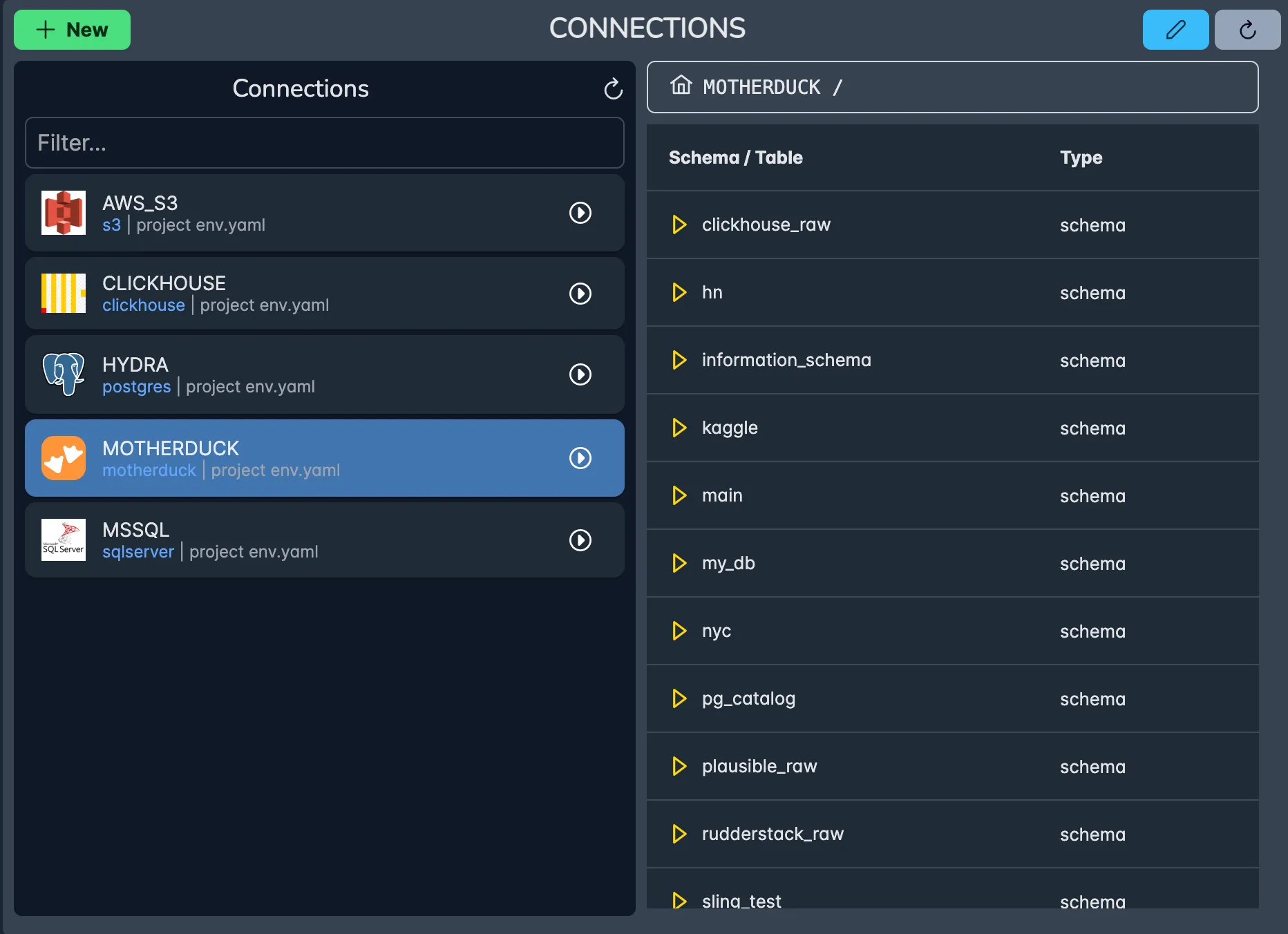
- Centralized credential management
- Connection health monitoring
- Easy testing and validation
- Support for multiple environments
Replication Builder
The visual replication builder makes it easy to:
- Design data pipelines
- Configure transformations
- Set up scheduling
- Monitor execution
For more information about the Sling Platform and its features, visit the Platform Getting Started Guide.
Best Practices and Next Steps
Let’s wrap up with some best practices for using Sling in your Parquet to SQLite data pipelines, along with suggestions for next steps.
Performance Optimization
Batch Size Management
- Adjust batch sizes based on your data volume
- Monitor memory usage during transfers
- Use appropriate compression settings
Resource Utilization
- Schedule large transfers during off-peak hours
- Monitor disk space on both ends
- Consider network bandwidth limitations
Data Type Handling
- Use appropriate data types in SQLite
- Handle NULL values consistently
- Consider column precision requirements
Common Use Cases
Sling’s Parquet to SQLite capabilities are particularly useful for:
Local Analytics
- Converting big data exports for local analysis
- Creating portable databases from data lake exports
- Building offline-capable applications
Development and Testing
- Creating test databases from production data samples
- Prototyping data models
- Quick data exploration
Data Distribution
- Packaging data for mobile applications
- Creating embedded databases
- Distributing reference data
Additional Resources
To learn more about Sling and its capabilities:
Documentation
Examples and Tutorials
Connection Guides
Related Guides
If you are weighing storage formats or moving Parquet into other targets, these guides cover adjacent patterns:
- Loading local Parquet into PostgreSQL when you need a full server database rather than an embedded one.
- Loading local Parquet into MySQL for the same source with a MySQL target.
- Querying data with DuckDB when you want columnar analytics over Parquet without importing it first.
FAQ
What is the difference between Parquet and SQLite?
Parquet is a columnar file format for analytics: it stores each column together, compresses heavily, and is read efficiently by tools like DuckDB and pandas, but it has no query engine of its own. SQLite is an embedded relational database, a single file that ships with a full SQL engine, indexes, and transactions. Parquet suits large, mostly-read analytical data; SQLite suits application data you query and update.
When should I use Parquet instead of SQLite?
Use Parquet when the data is large, append-mostly, and read by analytical tools, and when storage size and column scans matter more than random row updates. Use SQLite when an application needs to read and write individual rows, run transactions, or query data offline without a server.
Can SQLite read Parquet files directly?
Not natively. SQLite has no built-in Parquet reader, so you either load the Parquet data into a SQLite table first or use a tool such as DuckDB that can query Parquet in place. Sling handles the load path, reading the Parquet file and writing the rows into a SQLite table in one command.
How do I convert a Parquet file to SQLite?
Point Sling at the Parquet file as the source and a SQLite database as the target, then run one command. Sling infers the schema, creates the table, and bulk-loads the rows, so no custom parsing code is required for the common case.
Is SQLite or DuckDB better for querying Parquet?
DuckDB is the better fit for querying Parquet directly because it is columnar and can scan Parquet files in place. SQLite is row-oriented with no Parquet reader, so it is the better target when you need a portable, transactional, embedded database.
Conclusion
Sling simplifies the process of transferring data from Parquet files to SQLite databases, offering both command-line and platform-based solutions. Whether you’re working on a small local project or managing enterprise-scale data operations, Sling provides the tools and flexibility you need.
By following the practices and examples in this guide, you can:
- Set up efficient data pipelines
- Automate your data transfers
- Maintain data integrity
- Scale your operations as needed
Remember that Sling is continuously evolving, with new features and improvements being added regularly. Stay updated with the latest developments by following the Sling documentation.