



Last updated: September 2026
Introduction
Moving data from SFTP servers to Snowflake has traditionally been a complex process requiring multiple tools and custom scripts. Organizations often struggle with challenges such as:
- Setting up and maintaining secure SFTP connections
- Handling CSV file formats and data type mappings
- Managing incremental loads and data transformations
- Ensuring reliable and scalable data transfers
- Monitoring and troubleshooting data pipelines
Sling simplifies this entire process by providing a unified, efficient solution for transferring data from SFTP servers to Snowflake. In this comprehensive guide, we’ll walk through how to set up and use Sling for this specific use case, covering both command-line operations and YAML-based configurations.
Let’s dive into how you can streamline your SFTP to Snowflake data pipeline using Sling.
Prerequisites
Before we begin, make sure you have the following:
- Sling CLI Installation
You can install Sling using various methods depending on your operating system:
# macOS / Linux
curl -fsSL https://slingdata.io/install.sh | bash

# Windows
irm https://slingdata.io/install.ps1 | iex

# Python
pip install sling
Verify the installation by running:
# Check Sling version
sling --version
SFTP Server Requirements
- Host address and port (default is 22)
- Username and password or SSH private key
- Path to the CSV files you want to transfer
- Proper read permissions on the SFTP server
Snowflake Requirements
- Account identifier (e.g.,
xy12345.us-east-1) - Username and password
- Database name and schema
- Role with appropriate privileges
- Warehouse for processing
- Account identifier (e.g.,
CSV File Considerations
- Consistent file format and structure
- Well-defined column names and data types
- UTF-8 encoding recommended
- Proper delimiter and quote characters
Setting Up Connections
Before we can transfer data, we need to configure both our SFTP and Snowflake connections in Sling. Let’s set up each connection step by step.
SFTP Connection Setup
There are several ways to configure your SFTP connection in Sling:
- Using
sling conns setCommand
# Basic authentication with password
sling conns set MY_SFTP type=sftp host=sftp.example.com user=myuser password=mypassword port=22

# Using SSH private key
sling conns set MY_SFTP type=sftp host=sftp.example.com user=myuser private_key=/path/to/private_key port=22
- Using Environment Variables
# Using JSON/YAML format
export MY_SFTP='{type: sftp, host: sftp.example.com, user: myuser, password: mypassword, port: 22}'
- Using Sling Environment YAML
Create or edit ~/.sling/env.yaml:
connections:
  MY_SFTP:
    type: sftp
    host: sftp.example.com
    user: myuser
    port: 22
    password: mypassword
    # Or use private key authentication
    # private_key: /path/to/private_key
Snowflake Connection Setup
Similarly, let’s configure the Snowflake connection:
- Using
sling conns setCommand
# Basic configuration
sling conns set SNOWFLAKE type=snowflake account=xy12345.us-east-1 user=myuser password=mypassword database=mydb role=myrole warehouse=mywarehouse

# Using connection URL
sling conns set SNOWFLAKE url="snowflake://myuser:[email protected]/mydb?warehouse=mywarehouse&role=myrole"
- Using Environment Variables
# Using connection URL format
export SNOWFLAKE='snowflake://myuser:[email protected]/mydb?warehouse=mywarehouse&role=myrole'
- Using Sling Environment YAML
Add to your ~/.sling/env.yaml:
connections:
  SNOWFLAKE:
    type: snowflake
    account: xy12345.us-east-1
    user: myuser
    password: mypassword
    database: mydb
    schema: public
    role: myrole
    warehouse: mywarehouse
Testing Connections
After setting up your connections, it’s important to verify they work correctly:
# Test SFTP connection
sling conns test MY_SFTP

# Test Snowflake connection
sling conns test SNOWFLAKE

# List available connections
sling conns list
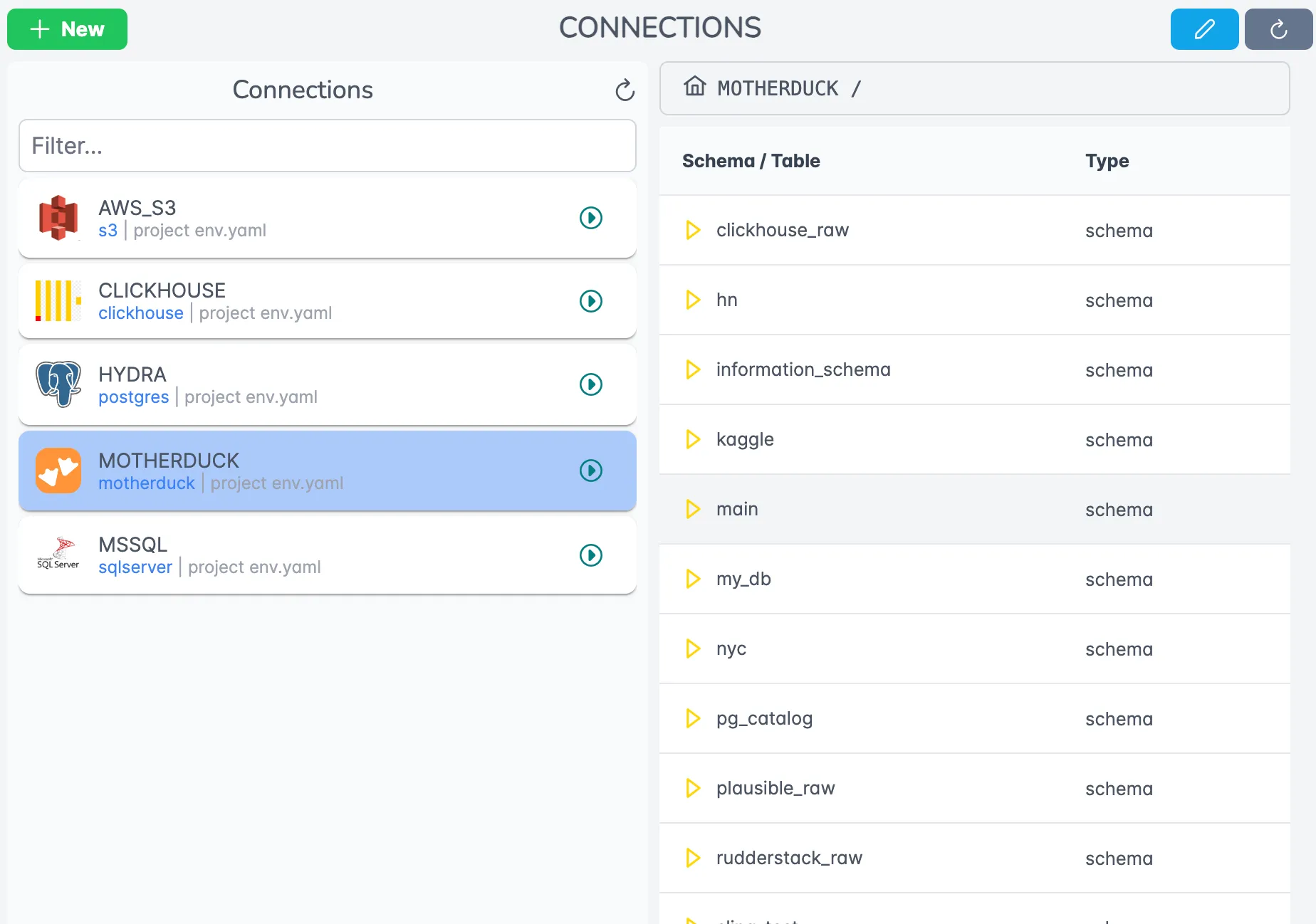
These tests ensure that Sling can successfully connect to both your SFTP server and Snowflake instance before attempting any data transfers.
Data Transfer Methods
Sling provides two main approaches for transferring data from SFTP to Snowflake: using CLI flags for quick operations and using YAML configurations for more complex, repeatable workflows.
Snowflake External Stage vs. a Direct Load
The most common question when ingesting SFTP files is whether to route them through a Snowflake external stage. The trade-off is worth knowing before you pick an approach.
A Snowflake external stage points at cloud object storage, usually S3, GCS, or Azure Blob. You create a storage integration, define the stage, and run COPY INTO to pull files into a table. This works well when your data already lands in cloud storage. The catch with SFTP is that Snowflake cannot read an SFTP server as an external stage. So the manual path looks like this:
- Pull the CSV files off the SFTP server with a script or a third-party connector.
- Upload them to S3, GCS, or Azure storage.
- Create a storage integration and an external stage in Snowflake.
- Write and schedule a
COPY INTOstatement, then handle file-format definitions and error rows.
Each of those steps is something to build and keep running. Sling collapses the chain. It connects to the SFTP server, reads the CSV stream, and loads it straight into Snowflake. There is no intermediate bucket, no storage integration, and no COPY INTO to maintain.
| Approach | Setup | Intermediate storage | Incremental loads | Best for |
|---|---|---|---|---|
| Snowflake external stage | Storage integration + stage + COPY INTO | Required (S3/GCS/Azure) | Manual file tracking | Files already in cloud storage |
| Sling direct load | One source + one target connection | None | Built-in with an update key | Files on SFTP, FTP, or local disk |
If your files already live in a cloud bucket, an external stage is a fine native option. If they sit on an SFTP server, loading them directly with Sling skips the copy-to-storage detour entirely. For a broader look at automated Snowflake data ingestion, the same direct-load pattern applies to FTP, local files, and other databases.
Using CLI Flags
The CLI approach is perfect for quick, one-off transfers or when you’re testing your setup:
- Basic Transfer
# Transfer a single CSV file
sling run --src-conn MY_SFTP --src-stream '/path/to/data.csv' \
  --tgt-conn SNOWFLAKE --tgt-object 'public.my_table' \
  --mode full-refresh

# Transfer multiple CSV files from a directory
sling run --src-conn MY_SFTP --src-stream '/path/to/csv_folder/*.csv' \
  --tgt-conn SNOWFLAKE --tgt-object 'public.{stream_file_name}' \
  --mode full-refresh
- Advanced Transfer with Options
# Transfer with column mapping and transformations
sling run --src-conn MY_SFTP --src-stream '/path/to/data.csv' \
  --tgt-conn SNOWFLAKE --tgt-object 'public.my_table' \
  --mode full-refresh \
  --columns '{ "id": "integer", "name": "string", "created_at": "timestamp" }' \
  --transforms '[remove_diacritics]' \
  --src-options '{ "empty_as_null": true, "datetime_format": "YYYY-MM-DD" }' \
  --tgt-options '{ "column_casing": "snake", "add_new_columns": true }'
Using Replication YAML
For more complex scenarios or production workflows, using a YAML configuration file provides better maintainability and version control:
- Basic Replication Configuration
Create a file named sftp_to_snowflake.yaml:
source: MY_SFTP
target: SNOWFLAKE

defaults:
  mode: full-refresh

streams:
  '/path/to/customers.csv':
    object: public.customers
    columns:
      customer_id: integer
      name: string
      email: string(50)
      created_at: timestamp

  '/path/to/orders.csv':
    object: public.orders
    columns:
      order_id: integer
      customer_id: integer
      order_date: timestamp
      total_amount: decimal
- Advanced Replication Configuration
Here’s a more sophisticated configuration with multiple streams, transformations, and options:
source: MY_SFTP
target: SNOWFLAKE

defaults:
  mode: full-refresh
  primary_key: [id]
  source_options:
    empty_as_null: true
    datetime_format: "YYYY-MM-DD"
  target_options:
    column_casing: snake
    add_new_columns: true

streams:
  '/path/to/customers/*.csv':
    mode: truncate
    object: public.customers
    columns:
      id: integer
      name: string
      email: string
      created_at: timestamp
    transforms:
      - remove_diacritics
      - trim_space
    source_options:
      delimiter: "|"

  '/path/to/orders/*.csv':
    object: public.orders_{stream_table}
    mode: incremental
    columns:
      order_id: integer
      customer_id: integer
      order_date: timestamp
      total_amount: decimal
    update_key: order_date
To run the replication:
# Run the replication configuration
sling run -r sftp_to_snowflake.yaml
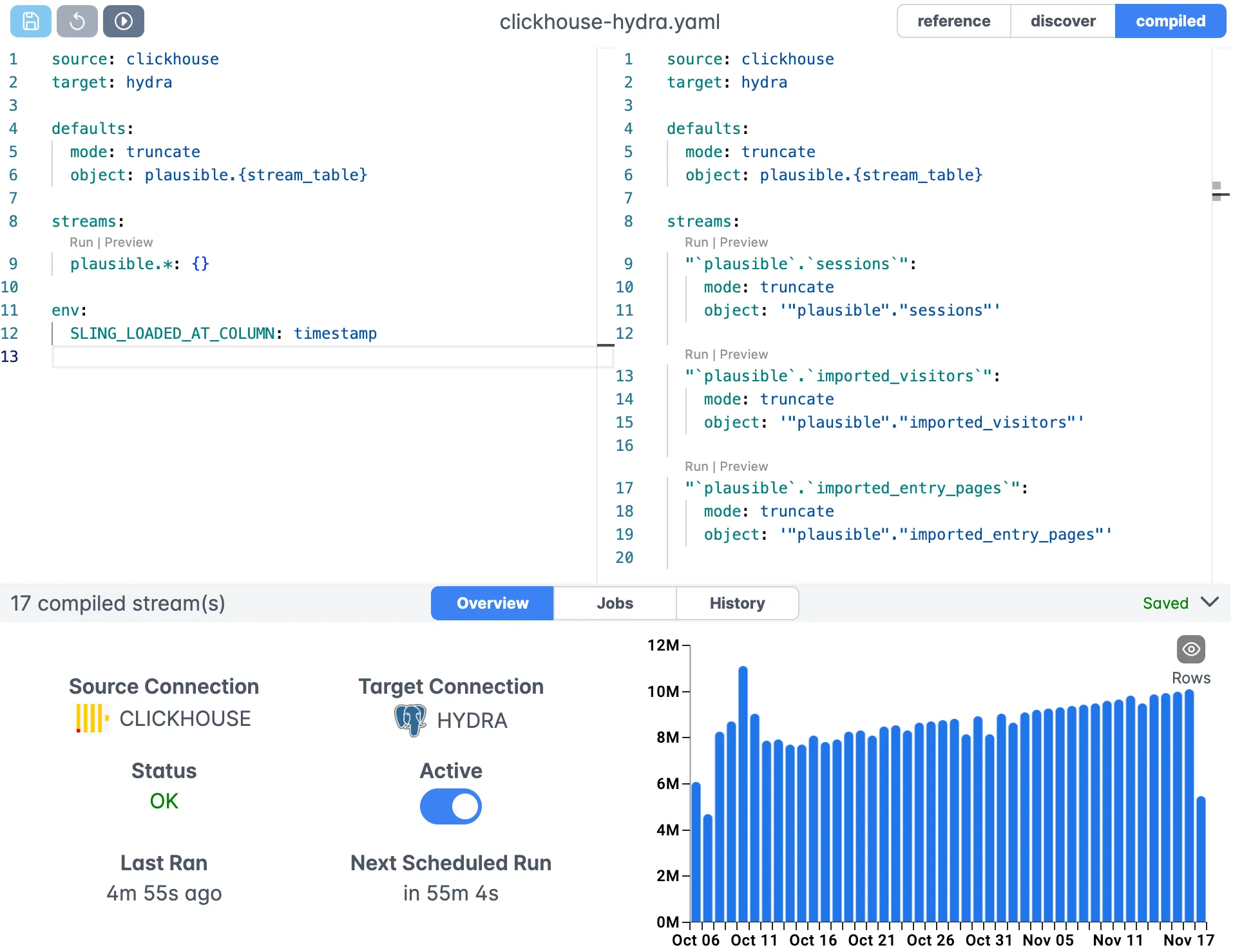
Runtime Variables
Sling supports runtime variables that can be used in your YAML configurations for dynamic paths and table names:
{stream_file_name}: The name of the current file being processed{stream_table}: The table name derived from the file name{stream_schema}: The schema name if specified in the path
These variables are particularly useful when dealing with multiple files or when you want to maintain a consistent naming convention between your source files and target tables.
Incremental Loading from SFTP
Reloading a full CSV export on every run wastes time and warehouse credits once your files grow. Incremental mode solves this. You tell Sling which column tracks change, usually a timestamp or an incrementing ID, and on each run it loads only the rows newer than the last value it saw.
source: MY_SFTP
target: SNOWFLAKE

streams:
  '/exports/orders.csv':
    object: public.orders
    mode: incremental
    primary_key: [order_id]
    update_key: updated_at
On the first run Sling loads the whole file. On later runs it compares updated_at against the highest value already in Snowflake and appends or updates only the newer records. The primary_key lets Sling upsert, so a row that changed upstream is updated rather than duplicated. This is the pattern most production SFTP-to-Snowflake pipelines settle on, because it keeps repeat ingestion cheap as the source files accumulate history.
If your SFTP server drops a new dated file each day instead of appending to one file, combine a wildcard stream with incremental mode so each new file is picked up automatically:
streams:
  '/exports/orders_*.csv':
    object: public.orders
    mode: incremental
    primary_key: [order_id]
    update_key: updated_at
Loading Snowflake Data Back to SFTP
The same connections work in reverse. If you need to push a Snowflake table or query result out to an SFTP server, for example to hand a partner a daily CSV extract, swap the source and target:
# Export a Snowflake query to a CSV on SFTP
sling run --src-conn SNOWFLAKE \
  --src-stream "select * from public.orders where status = 'shipped'" \
  --tgt-conn MY_SFTP --tgt-object '/exports/orders.csv'
Sling writes the result set as CSV to the SFTP path. You can choose other formats such as Parquet or JSON through target options, and the same replication YAML structure applies. So a single tool covers both the inbound SFTP-to-Snowflake load and the outbound Snowflake-to-SFTP extract, which removes the need to stitch two separate utilities together.
Sling Platform Overview
While the CLI is powerful for local development and testing, the Sling Platform provides a comprehensive web-based interface for managing your data operations at scale. Here are the key components:
Platform Components
Connection Management
- Centralized credential storage
- Connection testing and validation
- Role-based access control
- Support for multiple environments
Visual Editor
- YAML configuration editor with syntax highlighting
- Real-time validation
- Template library
- Version control integration
Job Management
- Scheduling and orchestration
- Dependency management
- Error handling and retries
- Monitoring and alerting
Agents
- Distributed execution
- Secure access to data sources
- Resource management
- Auto-scaling capabilities
Platform Interface
The Sling Platform provides an intuitive interface for managing your data operations:
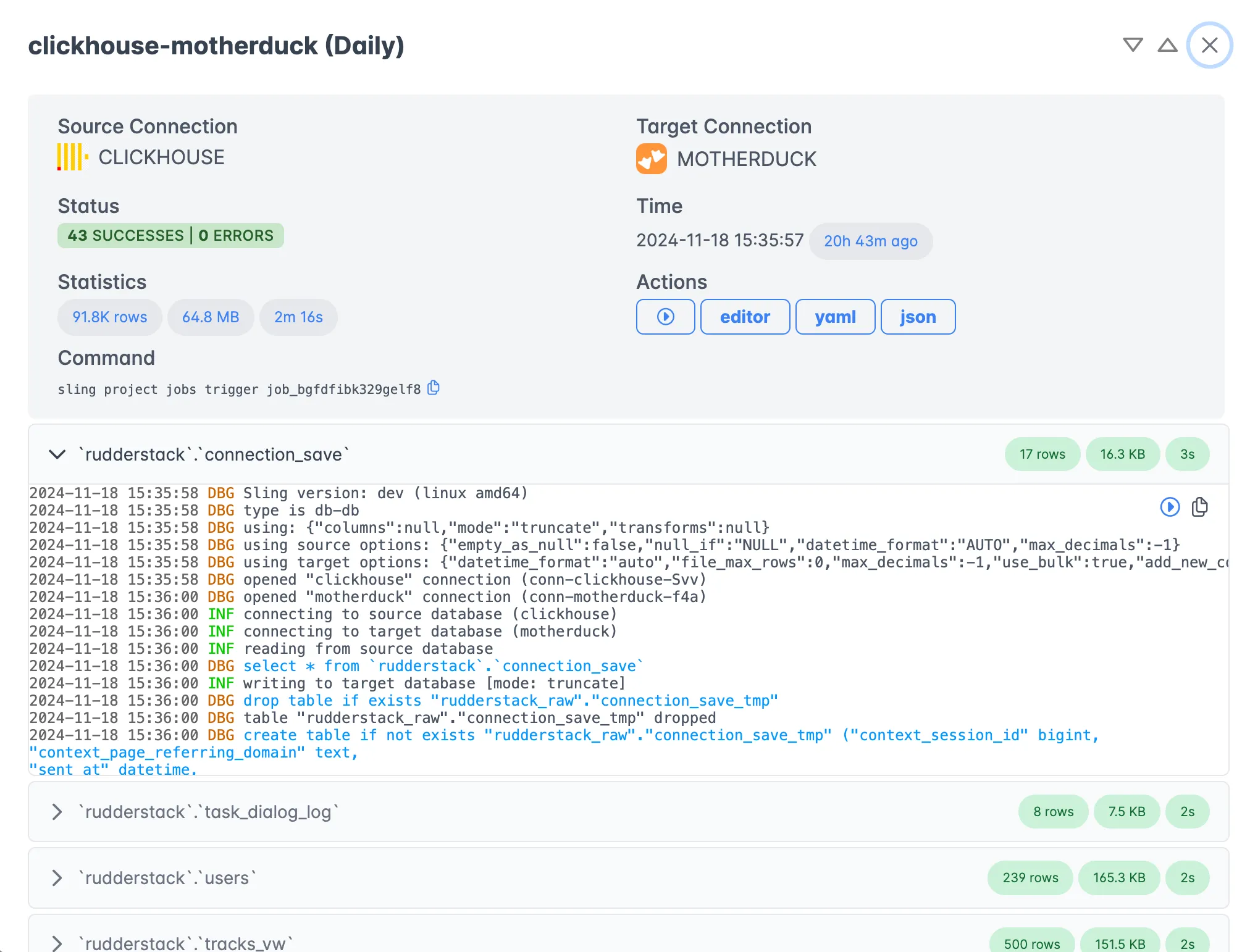
Key features include:
- Real-time job monitoring
- Detailed execution logs
- Performance metrics
- Error tracking and debugging tools
Agent Management
Agents are the workers that execute your data operations:
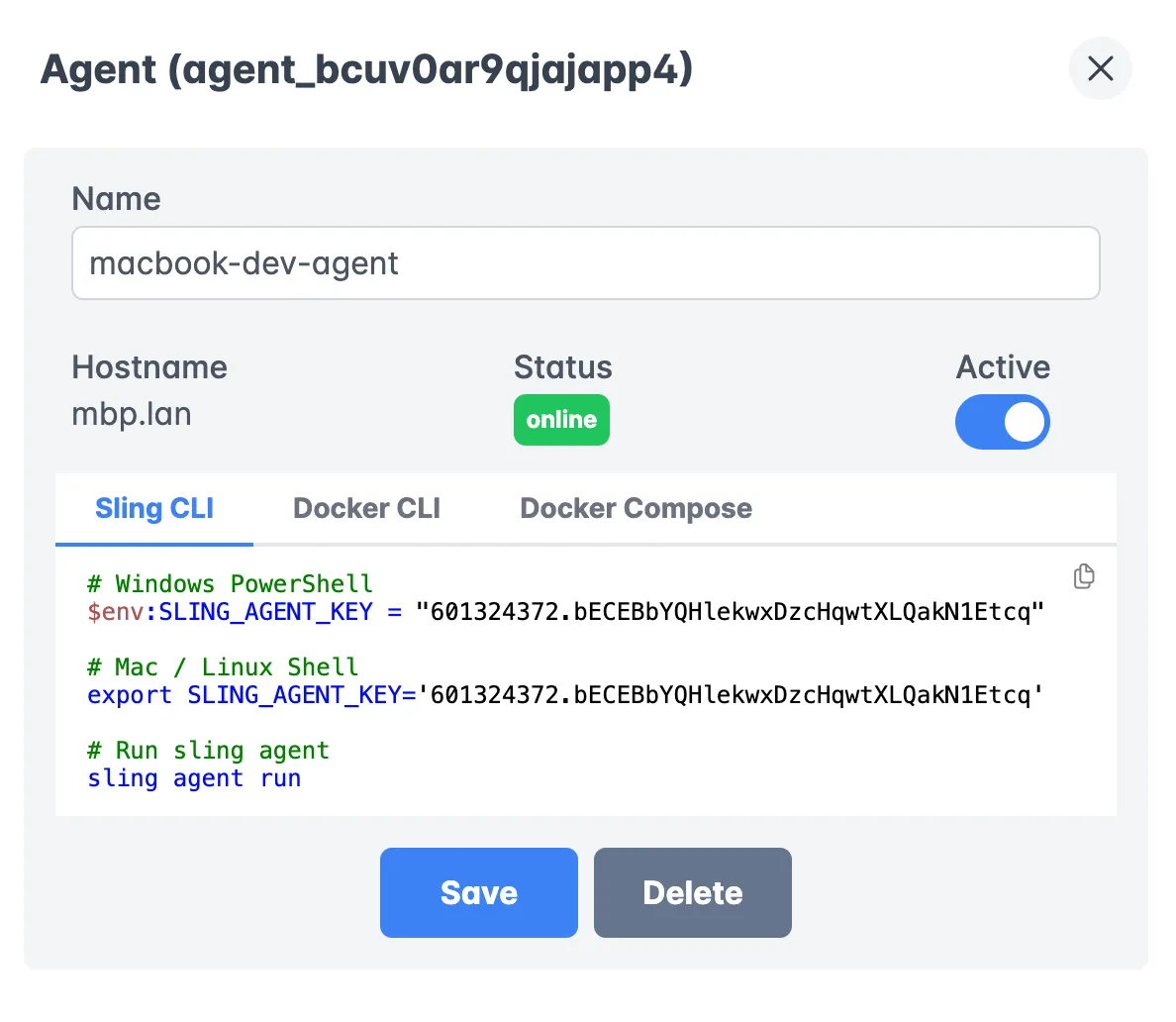
Benefits of using agents:
- Run in your own infrastructure
- Secure access to your data sources
- Support for both development and production environments
- Automatic updates and maintenance
Job History and Monitoring
Track all your data operations with comprehensive history and monitoring:
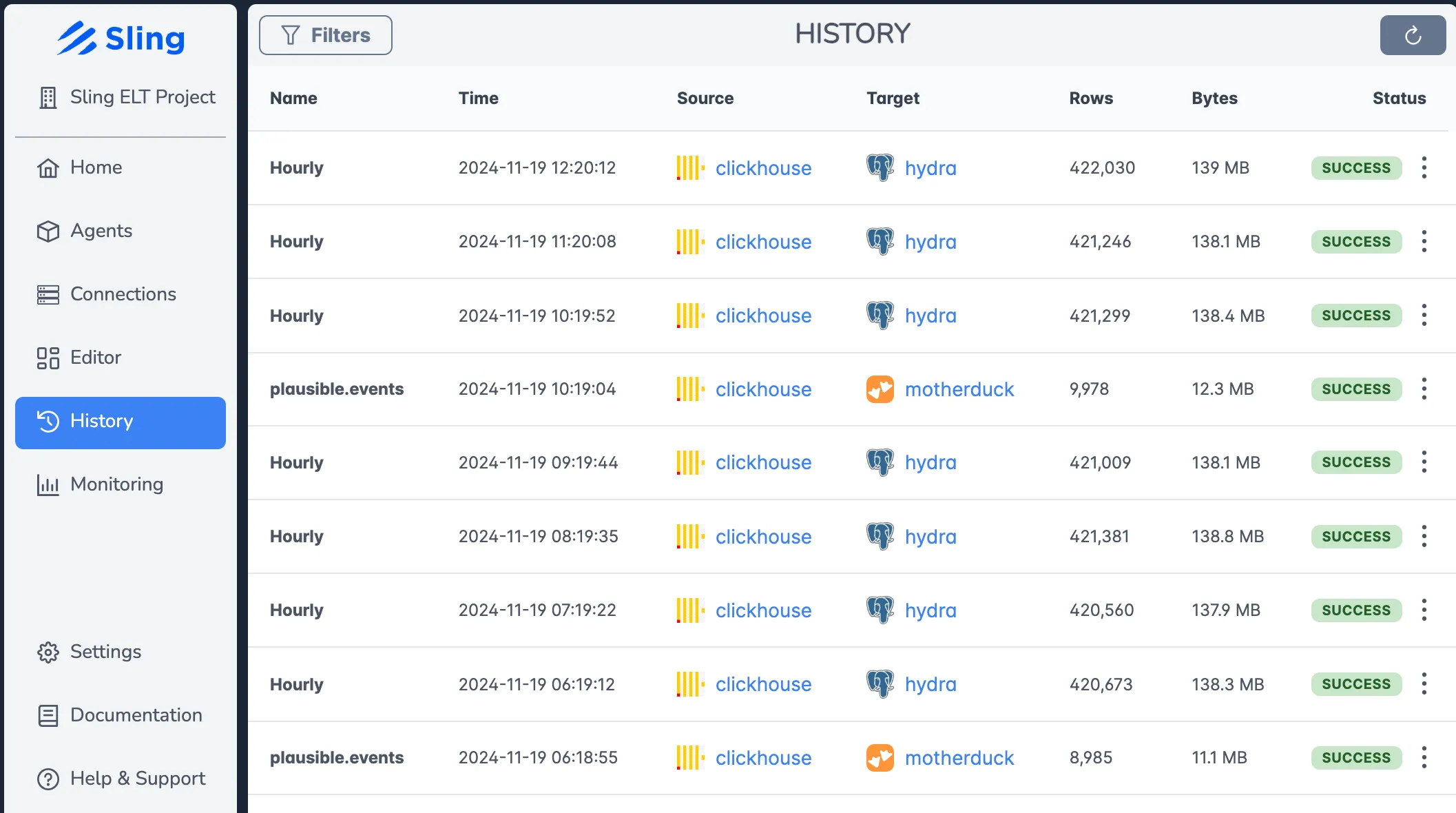
Features include:
- Historical execution data
- Success/failure tracking
- Performance trends
- Resource utilization metrics
Getting Started
Ready to streamline your SFTP to Snowflake data pipeline with Sling? Here’s how to get started:
Install Sling CLI
- Follow the installation instructions for your operating system
- Verify the installation with
sling --version
Set Up Your Environment
- Configure your connections using the environment guide
- Test your connections with
sling conns test
Create Your First Replication
- Start with a simple CLI command to test the transfer
- Create a replication YAML file for more complex workflows
- Learn about replication modes and options
Explore Advanced Features
- Check out source options for file handling
- Learn about target options for Snowflake optimization
- Understand runtime variables for dynamic configurations
Consider the Sling Platform
- Sign up at app.slingdata.io
- Follow the platform getting started guide
- Deploy agents in your infrastructure
Additional Resources
- File to Database Examples
- Database to Database Examples
- Database to File Examples
- SFTP Connection Guide
- Snowflake Connection Guide
Community and Support
- Join our Discord community
- Report issues on GitHub
- Contact support at [email protected]
Related Guides
For other SFTP and Snowflake loading patterns, see these guides:
- Loading JSON data from SFTP to Snowflake when your source files are JSON instead of CSV.
- Transferring SFTP Parquet files to Snowflake for columnar Parquet sources.
- Importing SFTP files into PostgreSQL for the same source with a PostgreSQL target.
- Loading local CSV data into Snowflake for CSV files that originate on your own machine.
- Migrating SQL Server to Snowflake for a database-to-warehouse pipeline into the same target.
FAQ
How do I change the delimiter when loading CSV files from SFTP?
Set the delimiter option under source_options, for example a pipe or a tab, when your files do not use commas. Sling reads the file with that delimiter so columns are parsed correctly.
Can Sling load several CSV files from one SFTP directory at once?
Yes. Use a wildcard path such as /path/to/csv_folder/*.csv as the stream and Sling processes every matching file. The {stream_file_name} variable lets you give each file its own target table.
How does Sling determine column data types for CSV files?
Sling samples the file and infers each column type automatically. You can override the result by declaring explicit types under the columns key, which is useful when a numeric-looking column should stay text.
Does Sling support incremental loading for CSV files from SFTP?
Yes. Set the stream mode to incremental and define an update_key so Sling loads only rows newer than the last run. This avoids reloading data that is already in Snowflake.
How can I handle empty values in CSV source files?
Enable empty_as_null under source_options so Sling converts empty fields into NULL values. This keeps the loaded table consistent instead of mixing blank strings with genuine nulls.
What is the difference between full-refresh and truncate mode for CSV loads?
Full-refresh drops and recreates the target table on each run, while truncate keeps the existing table and empties it before loading. Truncate preserves table grants and structure, which can matter in production.
Do I need to define column types in the replication YAML?
No, column definitions are optional because Sling infers types from the data. Declaring them gives you tighter control over the target schema and is recommended for production pipelines.
Should I use a Snowflake external stage or a tool like Sling for SFTP ingestion?
A Snowflake external stage reads files that already sit in cloud storage such as S3 or GCS. SFTP servers are not supported as external stages directly, so the manual path is copy files to cloud storage, then stage and COPY them. Sling reads the SFTP files directly and loads them into Snowflake in one step, which removes the intermediate copy and the stage to maintain.
Can Sling move data from Snowflake back out to an SFTP server?
Yes. Sling runs in both directions. To export from Snowflake to SFTP you swap the source and target, set an SFTP path as the target object, and choose an output format such as CSV or Parquet. The same connection and replication concepts apply in reverse.
How do I run the SFTP to Snowflake load on a schedule?
Save the replication YAML and call sling run -r on a cron job, or add the replication to the Sling Platform and set a schedule there. Pair it with incremental mode so each scheduled run only loads the newer rows.
Can Sling connect to the SFTP server with an SSH private key instead of a password?
Yes. Set private_key to the path of your key file in the connection instead of a password. This is the recommended method for automated pipelines because there is no password to rotate in plain text.
Start simplifying your data operations today with Sling!