



Introduction
Last updated: July 2026
Moving data from SFTP servers to Snowflake data warehouses is a common requirement in modern data architectures. When dealing with Parquet files, this process can become complex, requiring careful handling of file formats, data types, and transfer mechanisms. Traditional approaches often involve multiple tools and custom scripts, leading to maintenance overhead and potential points of failure.
Enter Sling, a modern data movement tool designed to simplify these complex data pipelines. In this comprehensive guide, we’ll walk through the process of setting up an efficient data transfer pipeline from an SFTP server (containing Parquet files) to a Snowflake data warehouse using Sling.
Understanding the Tools
Before diving into the implementation, let’s understand the key components involved:
SFTP (Secure File Transfer Protocol)
SFTP provides a secure way to transfer files over a network. It’s widely used in enterprise environments for its security features and reliability. When dealing with data transfers, SFTP ensures that sensitive data is encrypted during transmission.
Parquet File Format
Apache Parquet is a columnar storage file format designed for efficient data storage and retrieval. Its key advantages include:
- Efficient compression and encoding schemes
- Optimized performance for large-scale queries
- Schema evolution capabilities
- Reduced storage costs
Snowflake Data Warehouse
Snowflake is a cloud-based data warehouse platform that offers:
- Scalable storage and compute resources
- Support for semi-structured data
- Built-in optimization for large-scale analytics
- Robust security features
Sling Platform
Sling is a modern data movement and transformation platform that bridges these technologies:
- Simplified connection management
- Support for multiple file formats including Parquet
- Built-in monitoring and error handling
- Both CLI and UI-based approaches
Comparing Your Options: Sling vs Fivetran, Hightouch, and Native Snowflake
Before building the pipeline, it helps to see where Sling sits against the other common ways to get SFTP Parquet files into Snowflake. Each option makes a different trade between managed convenience and control.
| Option | How it works | Data path | Cost model | Best when |
|---|---|---|---|---|
| Sling | Open-source binary reads SFTP and loads Snowflake directly | Direct, SFTP to Snowflake | Free, open source | You want direct control, no per-row billing, and a config you can version |
| Fivetran | Managed SaaS connector polls SFTP on a schedule | Through Fivetran’s cloud | Monthly active rows | You want fully managed and are fine paying by volume |
| Hightouch | Reverse-ETL platform, strongest for Snowflake-to-SFTP | Through Hightouch’s cloud | Per destination / rows | Your main need is pushing Snowflake data back out |
| Native Snowflake stage | Copy files to S3/GCS/Azure, then COPY INTO from an external stage | SFTP to cloud storage to Snowflake | Snowflake compute | You already stage everything in cloud object storage |
The native Snowflake path is worth calling out: a Snowflake external stage points at S3, GCS, or Azure, not at SFTP. So the “native” route actually means copying your Parquet files from SFTP into cloud storage first, then running COPY INTO against that stage. That is two moves and an extra storage bill. Sling reads the Parquet straight from SFTP and loads it through an internal stage it manages, so there is no intermediate bucket to provision.
For the SFTP-to-Snowflake direction covered in this guide, Sling gives you the direct data path of a hand-built pipeline without the managed-SaaS bill. The rest of this article shows how.
Getting Started with Sling
Let’s begin by installing Sling on your system. Sling offers multiple installation methods to suit different environments.
Installation
Choose the installation method that best suits your operating system:
# macOS / Linux
curl -fsSL https://slingdata.io/install.sh | bash

# Windows
irm https://slingdata.io/install.ps1 | iex

# Python
pip install sling
After installation, verify that Sling is properly installed by checking its version:
# Check Sling version
sling --version
For more detailed installation instructions and options, visit the Sling CLI Getting Started Guide.
Setting Up Connections
Before we can transfer data, we need to configure both our source (SFTP) and target (Snowflake) connections. Sling provides multiple ways to manage connections, including environment variables and a YAML configuration file.
SFTP Connection Setup
The SFTP connection requires authentication details to securely access your SFTP server. Here’s how to set it up:
# Set up SFTP connection using CLI
sling conns set MY_SFTP type=sftp host=<host> user=<user> password=<password> port=22

# Alternative: Using URL format
sling conns set MY_SFTP url=sftp://myuser:[email protected]:22
For enhanced security, you can use SSH key authentication:
# In ~/.sling/env.yaml
connections:
  MY_SFTP:
    type: sftp
    host: <host>
    user: <user>
    port: 22
    private_key: <path_to_private_key>
    passphrase: <optional_passphrase>
Snowflake Connection Setup
For Snowflake, we need to provide database credentials and connection details:
# Set up Snowflake connection using CLI
sling conns set SNOWFLAKE type=snowflake account=<account> user=<user> database=<database> password=<password> role=<role>

# Alternative: Using URL format
sling conns set SNOWFLAKE url="snowflake://myuser:[email protected]/mydatabase?schema=<schema>&role=<role>"
You can also configure the connection in your environment file:
# In ~/.sling/env.yaml
connections:
  SNOWFLAKE:
    type: snowflake
    account: <account>
    user: <user>
    password: <password>
    database: <database>
    schema: <schema>
    role: <role>
    warehouse: <warehouse>
Environment Variables
For production environments, you might prefer using environment variables:
# SFTP connection
export MY_SFTP='{type: sftp, url: "sftp://myuser:[email protected]:22"}'

# Snowflake connection
export SNOWFLAKE='snowflake://myuser:[email protected]/mydatabase?schema=<schema>&role=<role>'
Testing Connections
After setting up your connections, it’s important to verify they work correctly:
# Test SFTP connection
sling conns test MY_SFTP

# Test Snowflake connection
sling conns test SNOWFLAKE

# List available connections
sling conns list
For more details about connection configuration, refer to the Sling Environment documentation.
Data Transfer Using Sling CLI
With our connections set up, we can now transfer Parquet files from SFTP to Snowflake. Sling provides multiple approaches to accomplish this, from simple CLI commands to more sophisticated replication configurations.
Basic Transfer Command
The simplest way to transfer a single Parquet file is using the CLI:
# Transfer a single Parquet file
sling run --src-conn MY_SFTP --src-stream '/path/to/data.parquet' \
  --tgt-conn SNOWFLAKE \
  --tgt-object 'my_schema.my_table' \
  --mode full-refresh
Advanced Transfer Options
For more complex scenarios, you can add various options:
# Transfer multiple Parquet files with specific options
sling run --src-conn MY_SFTP --src-stream '/path/to/data/*.parquet' \
  --tgt-conn SNOWFLAKE \
  --tgt-object 'my_schema.my_table' \
  --mode full-refresh \
  --src-options '{empty_as_null: true}' \
  --tgt-options '{column_casing: snake, add_new_columns: true}'
Using Replication YAML
For more maintainable and repeatable transfers, use a replication YAML file:
# sftp_to_snowflake.yaml
source: MY_SFTP
target: SNOWFLAKE

defaults:
  mode: full-refresh
  target_options:
    column_casing: snake
    add_new_columns: true

streams:
  '/path/to/customers/*.parquet':
    object: analytics.customers
    transforms:
      - remove_diacritics
    target_options:
      table_keys:
        primary: [customer_id]

  '/path/to/orders/*.parquet':
    object: analytics.orders
    transforms:
      - remove_diacritics
    target_options:
      table_keys:
        primary: [order_id]
Run the replication with:
# Run the replication
sling run -r sftp_to_snowflake.yaml
Complex Replication Example
Here’s a more sophisticated example that showcases additional features:
# complex_sftp_to_snowflake.yaml
source: MY_SFTP
target: SNOWFLAKE

env:
  DATA_PATH: /data/exports
  TARGET_SCHEMA: analytics

defaults:
  mode: full-refresh
  source_options:
    empty_as_null: true
  target_options:
    column_casing: snake
    add_new_columns: true
    table_ddl: |
      create table if not exists {schema}.{table} (
        {col_types},
        _sling_loaded_at timestamp default current_timestamp()
      )

streams:
  '{data_path}/customers/*.parquet':
    object: {target_schema}.customers
    transforms:
      '*': [remove_diacritics]
      email: [lower] # lowercase email values
    target_options:
      table_keys:
        primary: [customer_id]
      pre_sql: truncate table {target_schema}.customers

  '{data_path}/orders/*.parquet':
    object: {target_schema}.orders
    transforms:
      - remove_diacritics
    target_options:
      table_keys:
        primary: [order_id]
      post_sql: |
        update {target_schema}.orders
        set status = 'PROCESSED'
        where status is null

env:
  data_path: ${DATA_PATH} # from env variable
This example includes:
- Runtime variables (
{data_path},{target_schema}) - Table creation with custom DDL
- Column transformations
- Pre and post SQL execution
- Table key definitions
For more details about replication configuration, check out the Replication documentation.
Going the Other Way: Exporting Snowflake Tables to SFTP
Plenty of workflows need the reverse of everything above: taking a Snowflake table and dropping a Parquet file onto an SFTP server for a partner or vendor to pick up. This is one of the most common SFTP questions in the Snowflake community, and Sling handles it by swapping source and target.
Instead of copying to SFTP files with cloud storage in between, you point the source at Snowflake and the target at your SFTP connection:
# Export a Snowflake table to a Parquet file on SFTP
sling run --src-conn SNOWFLAKE --src-stream 'analytics.orders' \
  --tgt-conn MY_SFTP \
  --tgt-object '/exports/orders.parquet'
Or as a replication config that exports several tables at once:
# snowflake_to_sftp.yaml
source: SNOWFLAKE
target: MY_SFTP

defaults:
  target_options:
    format: parquet

streams:
  analytics.orders:
    object: '/exports/orders.parquet'

  analytics.customers:
    object: '/exports/customers.parquet'
# Run the export
sling run -r snowflake_to_sftp.yaml
A few notes on the reverse direction:
- Pick your format at the target. Set
format: parquet(orcsv, orjson) undertarget_options. Parquet keeps the Snowflake types intact for whoever consumes the file downstream. - Split large tables into multiple files with
file_max_rowsorfile_max_bytesundertarget_optionsso a huge table lands as a set of manageable files rather than one giant one. - Filter what you export by using a SQL query as the source stream instead of a table name, for example selecting only the last day of rows.
Because Sling is a single binary, the same tool moves data both into and out of Snowflake, so you do not need a separate reverse-ETL product for the export path.
Using Sling Platform (UI)
While the CLI is powerful for local development and automation, Sling Platform provides a user-friendly interface for managing data transfers at scale. Let’s explore how to accomplish the same SFTP to Snowflake transfer using the platform.
Platform Overview
Sling Platform offers a web-based interface that includes:
- Visual connection management
- Interactive replication editor
- Real-time monitoring
- Team collaboration features
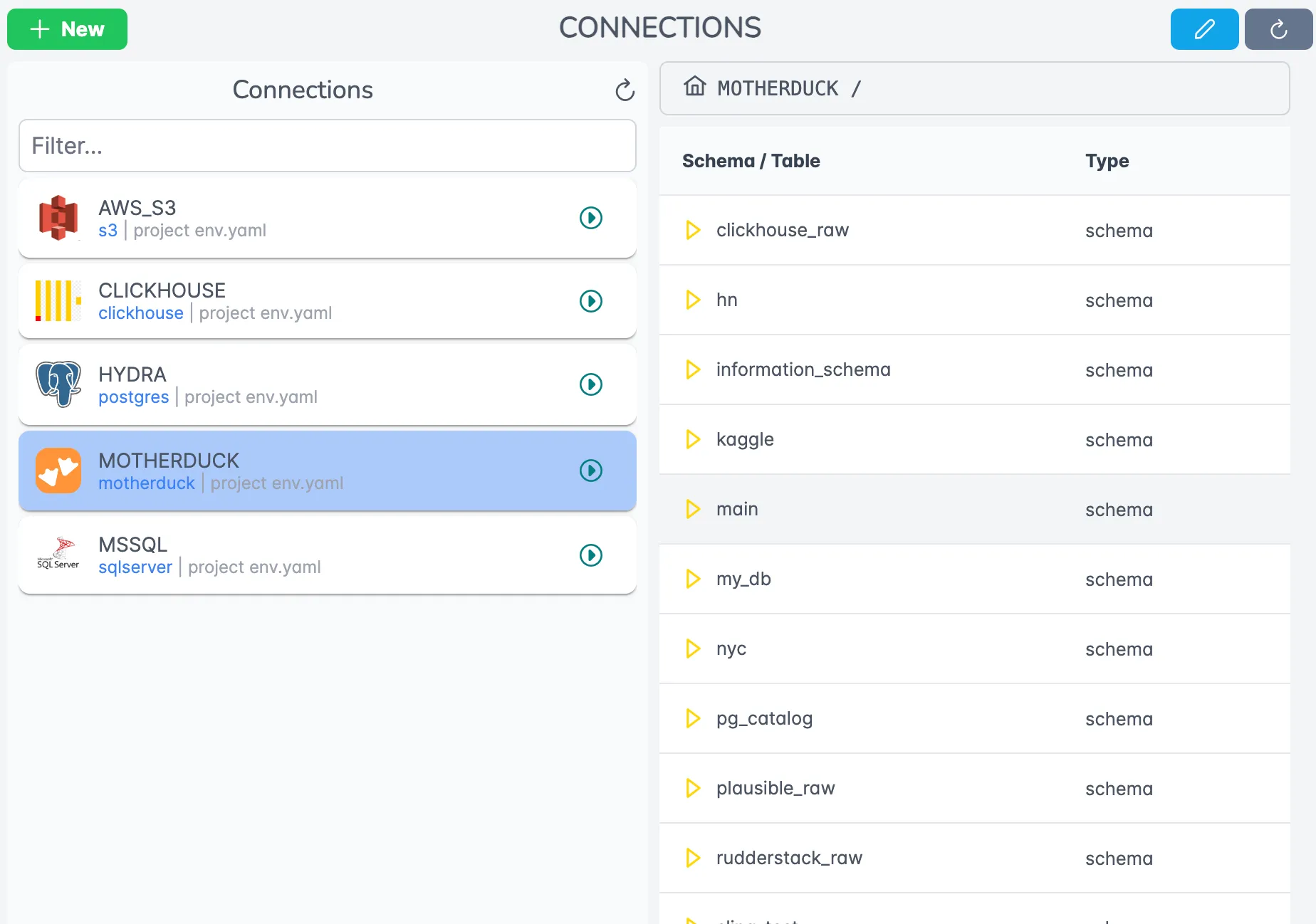
Creating Connections
The platform provides an intuitive interface for setting up connections:
- Navigate to the Connections page
- Click “New Connection”
- Choose the connection type (SFTP or Snowflake)
- Fill in the connection details
- Test the connection before saving
Setting Up Transfer Jobs
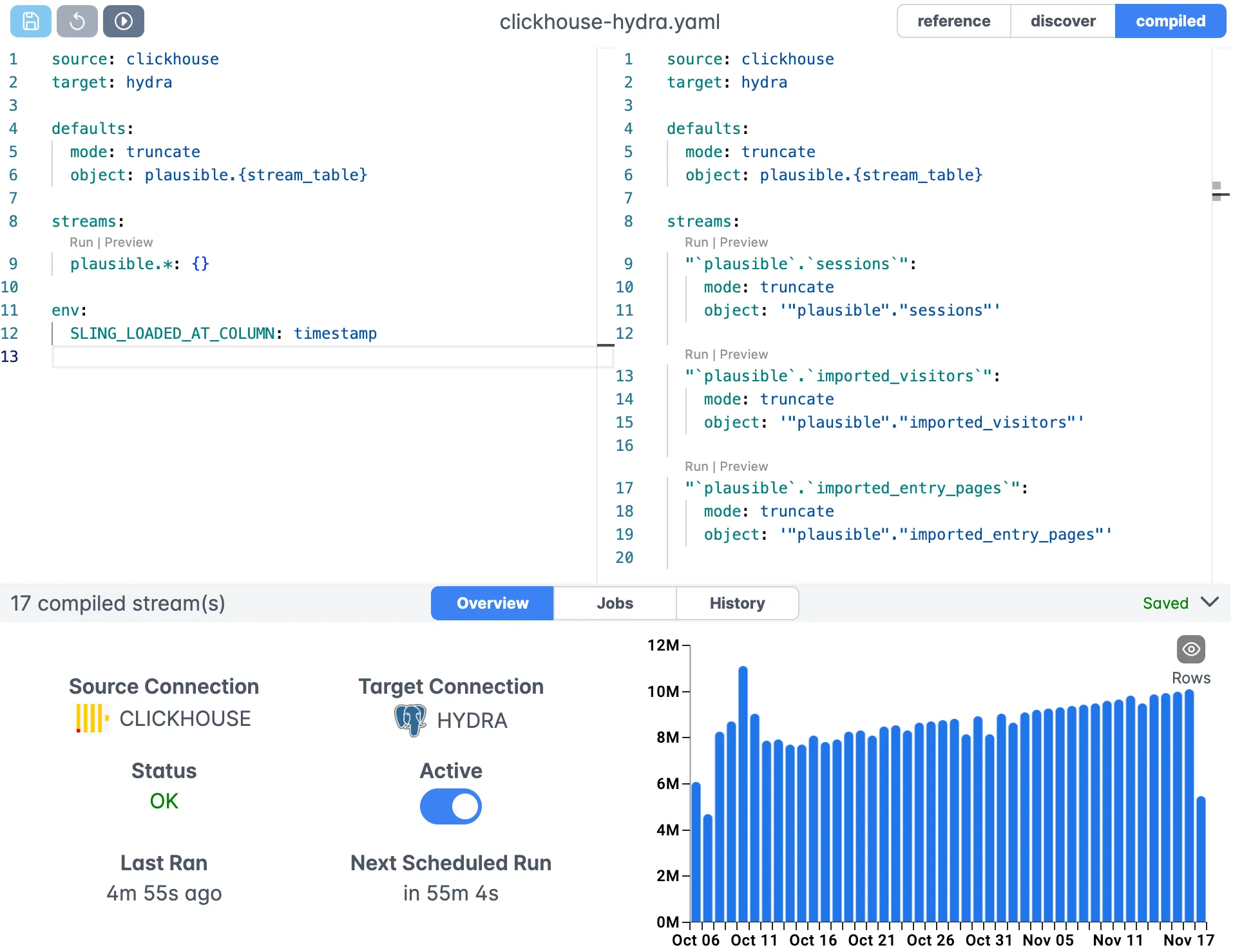
Creating a transfer job in the platform is straightforward:
- Go to the Editor page
- Select your source (SFTP) and target (Snowflake) connections
- Configure your replication settings using the visual editor
- Save and test your configuration
Monitoring and Management
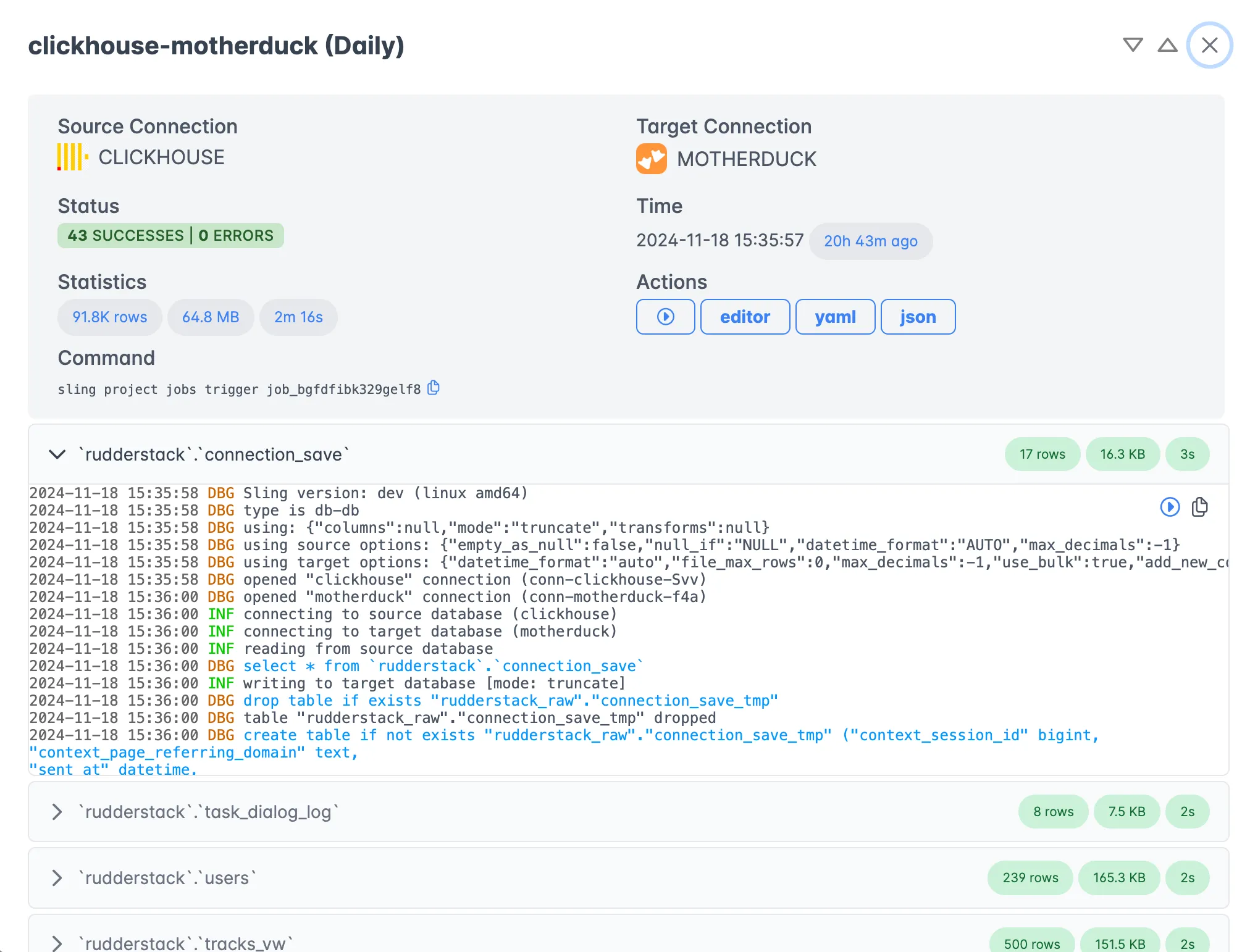
The platform provides comprehensive monitoring capabilities:
- Real-time execution tracking
- Detailed logs and error reporting
- Performance metrics and statistics
- Job history and analytics
For more information about using Sling Platform, visit the Platform documentation.
Related Guides
If you are working with SFTP or Snowflake from other angles, these companion guides cover adjacent paths:
- SFTP CSV to Snowflake — same SFTP source, CSV instead of Parquet
- SFTP JSON to Snowflake — JSON files on SFTP into Snowflake
- Local Parquet into Snowflake — same Parquet target without the SFTP hop
- Importing SFTP files into Postgres — when the target is Postgres rather than Snowflake
- Snowflake to Snowflake transfer — once the data is in Snowflake, moving it onward
FAQ
Does Sling read Parquet files directly from SFTP without staging them locally?
Yes. Sling streams Parquet rows from SFTP straight into the target without writing to local disk. The columnar layout is decoded in memory as bytes arrive, so the only disk footprint is whatever buffering your OS does on the network socket.
How does Sling handle Parquet schema differences between files in the same SFTP directory?
When add_new_columns is true under target_options, Sling will ALTER the Snowflake table to add any columns it sees in later files that were not in earlier ones. Type widening (for example INT to BIGINT) is also handled. If you want to fail loud instead, leave add_new_columns off.
Can I authenticate to SFTP with an SSH key instead of a password?
Yes. Set private_key to the path of your key file (or paste the key contents) and add passphrase if the key is encrypted. The password field can be omitted entirely when using key auth.
Why is my Snowflake load slow even though the Parquet file is small?
Snowflake load time is dominated by warehouse spin-up, not file size, for small loads. Keep the warehouse warm with auto_suspend set to a few minutes, or batch multiple streams into a single Sling run so the warehouse is reused.
What is the difference between mode: full-refresh and mode: incremental for Parquet sources?
full-refresh drops and rebuilds the target table on every run. incremental requires an update_key column and only loads rows where update_key is greater than the max value already in the target. For file sources, you usually combine incremental with a wildcard stream so new files get picked up.
Can Sling read Parquet files from a subdirectory tree on SFTP?
Yes. Use a recursive glob like /path/to/exports/**/*.parquet as the stream pattern. Sling walks the directory and treats each matched file as part of the same stream.
How do I handle Parquet files where column names contain spaces or mixed case for Snowflake?
Set column_casing to snake under target_options. Sling rewrites the column names to snake_case before issuing the Snowflake DDL, which avoids the quoted-identifier headache.
Can Sling also export Snowflake tables back out to an SFTP server?
Yes. Reverse the replication so Snowflake is the source and your SFTP connection is the target, then point each stream at a file path on the server. Sling reads the table and writes Parquet (or CSV or JSON) straight to SFTP, so the same tool covers both directions.
How is this different from Fivetran or Hightouch for SFTP to Snowflake?
Fivetran and Hightouch are managed SaaS connectors billed on volume or rows, and your data passes through their infrastructure. Sling is an open-source binary you run yourself, so data goes directly from SFTP to Snowflake, there is no per-row cost, and you can run it locally, in CI, or on your own server.
Do I need to set up a Snowflake external stage for the SFTP files?
No. A Snowflake external stage points at S3, GCS, or Azure, not at SFTP, so the native path would require copying files to cloud storage first. Sling reads the Parquet directly from SFTP and loads it through an internal stage it manages for you, which skips the extra hop.