



Last updated: August 2026
Introduction
In today’s data-driven landscape, organizations often need to migrate data between different database systems to optimize their analytics and processing workflows. SQL Server, while powerful for transactional workloads, may not be the most efficient choice for analytical queries. This is where DuckDB comes in, offering lightning-fast analytical processing capabilities. However, moving data between these systems traditionally requires complex ETL pipelines and significant engineering effort. Enter Sling, a modern data movement tool that simplifies this process dramatically.
Understanding SQL Server and DuckDB
SQL Server is a robust relational database management system that excels at:
- ACID compliance for transactional workloads
- Enterprise-grade security features
- High availability and disaster recovery
- Complex stored procedures and triggers
- Integration with Microsoft ecosystem
DuckDB, on the other hand, is an innovative in-process SQL OLAP database that offers:
- Columnar-vectorized query execution
- Exceptional analytical query performance
- Zero configuration setup
- Efficient data compression
- Seamless integration with Python and R
The Challenge of Data Migration
Traditional approaches to migrating data from SQL Server to DuckDB often involve:
- Writing custom scripts to extract data
- Managing data type conversions
- Handling large dataset limitations
- Dealing with schema changes
- Setting up intermediate storage
- Managing incremental updates
This complexity can lead to:
- Extended development time
- Resource-intensive processes
- Error-prone implementations
- Difficult maintenance
Introducing Sling as a Solution
Sling simplifies this entire process by providing:
- Direct connectivity between SQL Server and DuckDB
- Automated schema mapping and creation
- Efficient data streaming
- Built-in data type conversion
- Simple configuration options
- Both CLI and UI-based approaches
In this guide, we’ll walk through the process of using Sling to efficiently migrate your data from SQL Server to DuckDB, covering both basic and advanced scenarios.
Getting Started with Sling
Before we dive into data migration, let’s set up Sling on your system. Sling offers multiple installation methods to suit different operating systems and preferences.
Installation
Choose the installation method that matches your operating system:
# macOS / Linux
curl -fsSL https://slingdata.io/install.sh | bash

# Windows
irm https://slingdata.io/install.ps1 | iex

# Python
pip install sling
After installation, verify that Sling is properly installed by checking its version:
# Check Sling version
sling --version
Initial Configuration
Sling uses a configuration directory to store connection details and other settings. The configuration directory is typically located at:
- Linux/macOS:
~/.sling/ - Windows:
C:\Users\<username>\.sling\
The first time you run Sling, it will automatically create this directory and a default configuration file. You can also specify a custom location using the SLING_HOME_DIR environment variable.
For more detailed installation instructions and configuration options, visit the Sling CLI Getting Started Guide.
Setting Up Database Connections
Before we can migrate data, we need to configure our source (SQL Server) and target (DuckDB) connections. Sling provides multiple ways to set up and manage connections securely.
Configuring SQL Server Connection
SQL Server connections in Sling require your server credentials and connection details. Here’s how to set them up:
Using Environment Variables
The simplest way is to use environment variables:
# Set SQL Server connection using environment variable
export SQLSERVER_SOURCE='sqlserver://username:password@host:port/database?encrypt=true'
Using the Sling CLI
Alternatively, use the sling conns set command:
# Set up SQL Server connection with individual parameters
sling conns set SQLSERVER_SOURCE type=sqlserver host=localhost port=1433 database=mydb username=myuser password=mypass encrypt=true

# Or use a connection URL
sling conns set SQLSERVER_SOURCE url="sqlserver://username:password@host:port/database?encrypt=true"
Using the Sling Environment File
You can also add the connection details to your ~/.sling/env.yaml file:
connections:
  SQLSERVER_SOURCE:
    type: sqlserver
    host: localhost
    port: 1433
    database: mydb
    username: myuser
    password: mypass
    options:
      encrypt: true
Setting Up DuckDB Connection
DuckDB connections in Sling are straightforward as they primarily involve specifying a file path:
Using the Sling CLI
# Set up DuckDB connection
sling conns set DUCKDB_TARGET type=duckdb instance=/path/to/analytics.duckdb
Using Environment Variables
# Set DuckDB connection using environment variable
export DUCKDB_TARGET='duckdb:///path/to/analytics.duckdb'
Using the Sling Environment File
Add to your ~/.sling/env.yaml:
connections:
  DUCKDB_TARGET:
    type: duckdb
    instance: /path/to/analytics.duckdb
Testing Connections
After setting up your connections, it’s important to verify them:
# List all configured connections
sling conns list

# Test SQL Server connection
sling conns test SQLSERVER_SOURCE

# Test DuckDB connection
sling conns test DUCKDB_TARGET

# Discover available tables in SQL Server
sling conns discover SQLSERVER_SOURCE
For more details about connection configuration and options, refer to:
Basic Data Replication with CLI
Once you have your connections set up, you can start replicating data from SQL Server to DuckDB using Sling’s CLI flags. Let’s explore various replication scenarios.
Simple Table Replication
The most basic way to replicate data is using the sling run command with source and target specifications:
# Replicate a single table from SQL Server to DuckDB
sling run \
  --src-conn SQLSERVER_SOURCE \
  --src-stream "customers" \
  --tgt-conn DUCKDB_TARGET \
  --tgt-object "main.customers"
Using Custom SQL Queries
You can use custom SQL queries to transform or filter data during replication:
# Replicate with a custom SQL query
sling run \
  --src-conn SQLSERVER_SOURCE \
  --src-stream "SELECT id, name, email, created_at FROM customers WHERE created_at > '2024-01-01'" \
  --tgt-conn DUCKDB_TARGET \
  --tgt-object "main.recent_customers" \
  --tgt-options '{ "column_casing": "snake", "table_keys": { "unique": ["email"] } }'
For more information about CLI flags and options, visit the CLI Flags Overview.
Advanced Replication with YAML
While CLI flags are great for simple operations, YAML configurations provide more flexibility and reusability for complex replication scenarios. Let’s explore how to use YAML configurations for data migration.
Basic YAML Configuration
Here’s a basic example that replicates multiple tables:
# sqlserver_to_duckdb.yaml
source: SQLSERVER_SOURCE
target: DUCKDB_TARGET

defaults:
  mode: full-refresh
  target_options:
    add_new_columns: true
    column_casing: snake

streams:
  # Replicate customers table
  dbo.customers:
    object: main.customers
    primary_key: [customer_id]
    target_options:
      table_keys:
        unique: [email]

  # Replicate orders table
  dbo.orders:
    object: main.orders
    mode: incremental
    primary_key: [order_id]
Complex Multi-Stream Example
Here’s a more complex example that showcases advanced features:
# complex_sqlserver_to_duckdb.yaml
source: SQLSERVER_SOURCE
target: DUCKDB_TARGET

defaults:
  mode: incremental
  target_options:
    add_new_columns: true
    column_casing: snake

streams:
  dbo.customers:
    object: main.customers
    primary_key: [customer_id]
    update_key: last_modified_date
    select: [ -sensitive_data ]  # Exclude this column
    target_options:
      add_new_columns: true
      column_casing: snake
      table_keys:
        unique: [email]

  dbo.orders:
    object: main.orders
    primary_key: [order_id]
    update_key: order_date
    sql: |
      SELECT
        o.*,
        c.customer_name,
        c.customer_email
      FROM dbo.orders o
      JOIN dbo.customers c ON o.customer_id = c.customer_id
      WHERE o.order_date >= '2024-01-01'

  dbo.order_items:
    object: main.order_items
    primary_key: [order_id, item_id]
    update_key: last_modified_date
To run these replications:
# Run the basic replication
sling run -r sqlserver_to_duckdb.yaml

# Run the complex replication
sling run -r complex_sqlserver_to_duckdb.yaml
For more information about configuration options, visit:
DuckDB mssql Extension vs Sling: When to Use Each
The DuckDB community ships an mssql extension that lets you ATTACH a SQL Server database and query it directly from DuckDB. It is excellent at what it does. It also solves a different problem than Sling, so it is worth being precise about when each one fits.
Use the DuckDB mssql extension when:
- You want to query SQL Server live without copying any data first.
- The dataset is too large or volatile to persist in DuckDB.
- You need a one-off interactive analysis from a notebook or DuckDB shell.
- The latency from SQL Server to DuckDB is acceptable for your query pattern.
-- with the mssql extension
INSTALL mssql FROM community;
LOAD mssql;
ATTACH 'Server=host;Database=mydb;User=u;Password=p' AS src (TYPE mssql);

SELECT COUNT(*) FROM src.dbo.orders WHERE order_date > '2026-01-01';
Use Sling when:
- You want a persistent DuckDB file with a stable schema you query repeatedly.
- You need incremental loads on a schedule so SQL Server is not re-scanned every time.
- DuckDB and SQL Server are on different networks and you cannot open a TDS connection from your query environment (laptops, BI tools, CI).
- You want the pipeline declared in YAML and version-controlled.
- You are loading SQL Server alongside other sources (S3, Postgres, APIs) into the same DuckDB file.
A common pattern: use Sling on a cron to maintain a DuckDB file (analytics.duckdb) refreshed hourly, then point a BI tool, a notebook, or a local app at the file. Queries are fast because DuckDB is columnar and local; SQL Server stays untouched for OLTP traffic. If you also want ad-hoc, live SQL Server queries from the same DuckDB, install the mssql extension in that DuckDB session — Sling and the extension coexist fine.
Loading Specific SQL Server Workloads into DuckDB
The right configuration depends on what you are actually doing. Three common shapes:
1. Snapshot a SQL Server reporting table for fast local analytics
Full-refresh, single table, columnar-friendly:
source: SQLSERVER_SOURCE
target: DUCKDB_TARGET

streams:
  dbo.fact_sales:
    object: main.fact_sales
    mode: full-refresh
    target_options:
      column_casing: snake
Run this nightly. DuckDB queries against main.fact_sales will be 10 to 100 times faster than the same SELECT against SQL Server because of columnar layout.
2. Incremental load of an append-only fact table
streams:
  dbo.fact_events:
    object: main.fact_events
    mode: incremental
    primary_key: [event_id]
    update_key: event_id
Each run pulls only event_id greater than the previous high-water mark. Cheap, and the SQL Server source sees a trivial query.
3. Stage and transform with SQL on the source
You can push computation into SQL Server when it has the right indexes, and let DuckDB hold the result:
streams:
  enriched_orders:
    sql: |
      SELECT
        o.order_id,
        o.order_date,
        o.amount,
        c.region,
        c.segment
      FROM dbo.orders o
      JOIN dbo.customers c ON o.customer_id = c.customer_id
      WHERE o.order_date >= DATEADD(month, -6, GETDATE())
    object: main.enriched_orders
    mode: full-refresh
This is more efficient than copying two tables raw and joining inside DuckDB if the SQL Server join is indexed.
Type Mapping: SQL Server to DuckDB
A few mapping notes worth knowing up front. Sling handles these automatically, but it helps to know what you are getting:
| SQL Server type | DuckDB type | Notes |
|---|---|---|
| INT, BIGINT, SMALLINT | INTEGER, BIGINT, SMALLINT | Direct. |
| BIT | BOOLEAN | TRUE/FALSE in DuckDB. |
| DECIMAL(p,s), NUMERIC | DECIMAL(p,s) | Precision preserved up to DuckDB’s 38-digit limit. |
| VARCHAR, NVARCHAR, TEXT | VARCHAR | DuckDB has no separate fixed-length type. |
| DATETIME, DATETIME2 | TIMESTAMP | Microsecond precision. |
| DATE | DATE | Direct. |
| UNIQUEIDENTIFIER | UUID | Direct. |
| VARBINARY, IMAGE | BLOB | Bytes preserved. |
| XML | VARCHAR | Stored as text; parse with DuckDB string functions. |
| hierarchyid, geography, geometry | VARCHAR | Serialized to text; use SQL Server-side functions to project to a usable form before loading. |
If you need to override any of these, add a columns: block to the stream and set the target type explicitly.
The Sling Platform
While the CLI is powerful for developers and automation scenarios, the Sling Platform provides a user-friendly interface for managing data migrations visually. Let’s explore how to use the platform for SQL Server to DuckDB migrations.
Visual Replication Editor
The Sling Platform features an intuitive replication editor that makes it easy to configure and manage your data migrations:
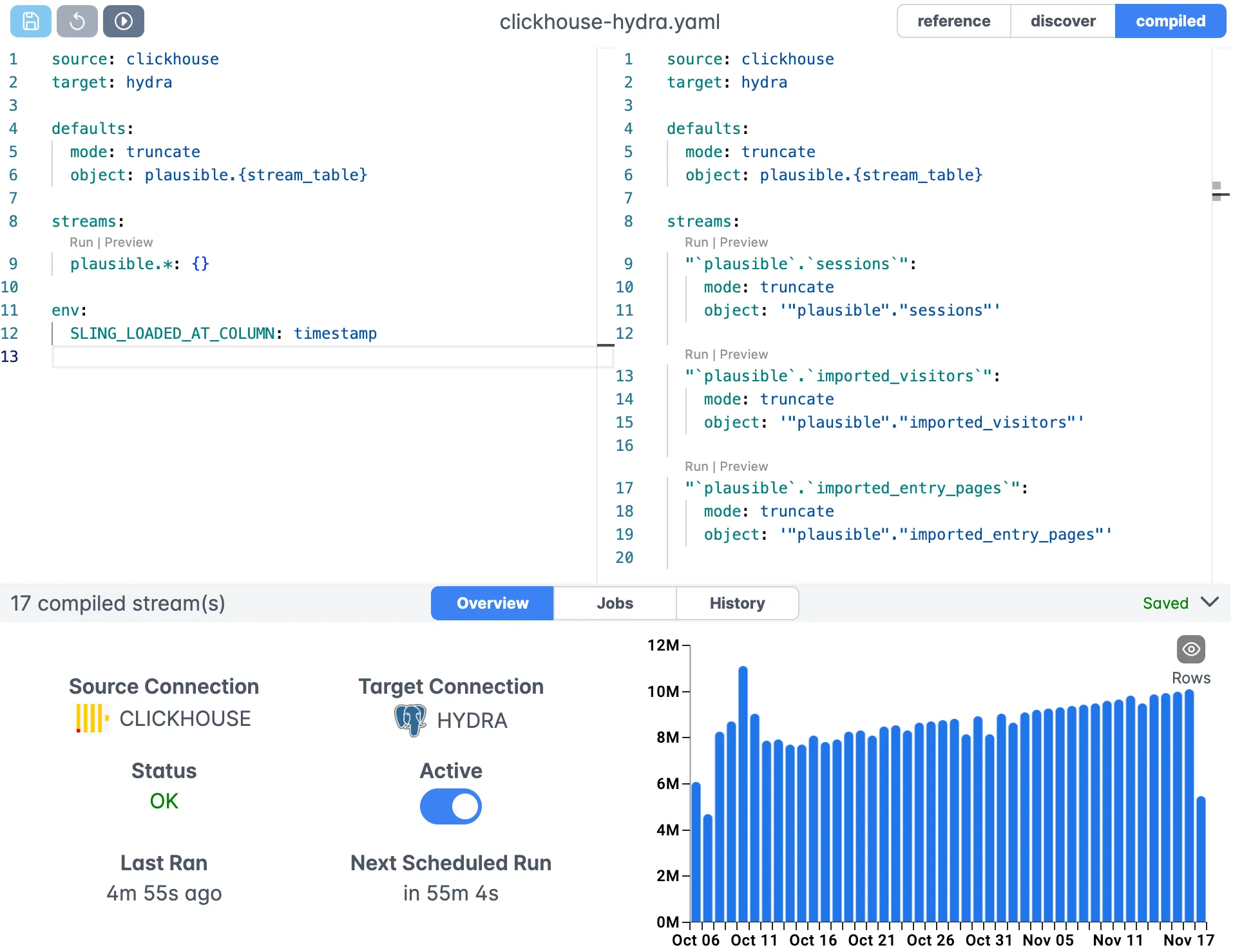
Key features of the editor include:
- Visual stream configuration
- Syntax highlighting for SQL queries
- Real-time validation
- Connection management
- Version control integration
Monitoring and Execution
The platform provides comprehensive monitoring and execution capabilities:
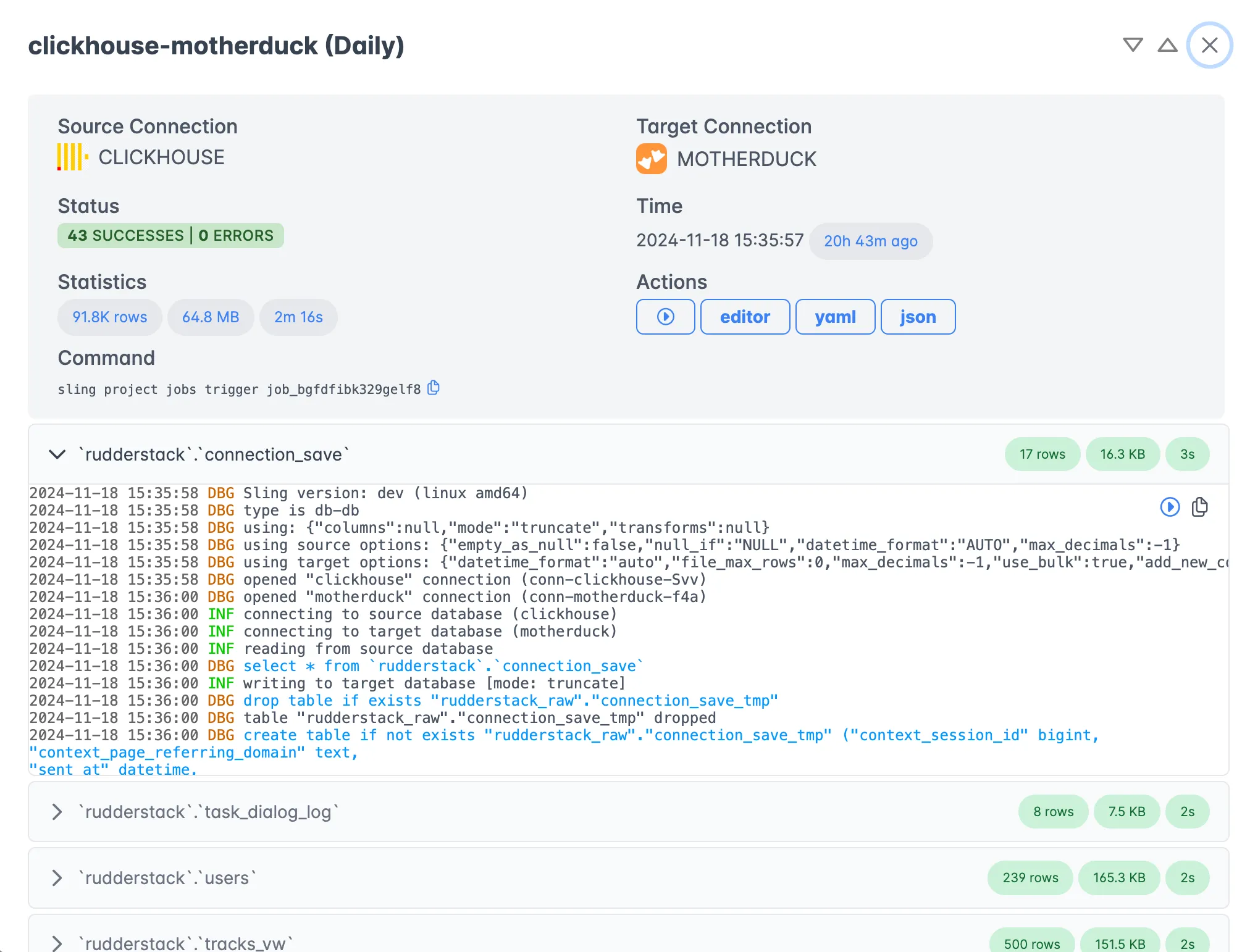
Benefits of using the platform include:
- Real-time progress monitoring
- Detailed execution logs
- Performance metrics
- Error tracking and alerts
- Historical execution data
Platform Components
The Sling Platform consists of several key components:
Connection Manager
- Secure credential storage
- Connection testing and validation
- Discovery of available tables and schemas
Replication Designer
- Visual stream configuration
- SQL query builder
- Schema mapping
- Options configuration
Execution Engine
- Parallel processing
- Automatic retries
- Resource management
- Error handling
Monitoring Dashboard
- Real-time metrics
- Historical trends
- Alert configuration
- Log aggregation
For more information about the Sling Platform, visit:
Getting Started and Next Steps
Now that we’ve covered both CLI and Platform approaches to migrating data from SQL Server to DuckDB, here are some recommended next steps:
Start Small
- Begin with a single table migration
- Test different replication modes
- Validate data accuracy
Optimize Performance
- Adjust batch sizes
- Configure table keys
- Fine-tune SQL queries
Automate and Monitor
- Set up scheduled replications
- Configure alerts
- Monitor performance metrics
Explore Advanced Features
- Custom transformations
- Complex mappings
- Multi-stream configurations
Additional Resources
To learn more about Sling and its capabilities:
Documentation
Examples
Community and Support
Related guides
For other SQL Server and DuckDB workflows you may need alongside this one:
- SQL Server to Postgres with Sling
- SQL Server to Snowflake with Sling
- SQL Server to BigQuery with Sling
- Extract Data from Databases into DuckLake
- Cloudflare D1 to DuckDB with Sling
- MySQL to MotherDuck with Sling
Frequently asked questions
What is the easiest way to get SQL Server data into DuckDB?
For ad-hoc queries against a live SQL Server instance, the DuckDB mssql community extension is the fastest path: attach the database, query directly, no ETL job. For scheduled loads into a persistent DuckDB file that you query repeatedly, Sling is the better fit. It does incremental syncs, handles type mapping, and you keep DuckDB lean by only loading the columns and rows you need.
Should I use the DuckDB mssql extension or an ETL tool like Sling?
Use the mssql extension when you want to query SQL Server live from DuckDB and don’t need to persist the data. Use Sling when you want a local DuckDB file that you query repeatedly without re-hitting SQL Server every time, when you need incremental loads on a schedule, or when SQL Server and DuckDB are on different networks and you can’t open a TDS connection from wherever you are querying.
Can Sling do incremental loads from SQL Server into DuckDB?
Yes. Set mode: incremental on a stream and pick an update_key (typically a last_modified_date or monotonic id). Sling tracks the high-water mark per stream and only reads rows newer than the previous run, which keeps DuckDB tight and avoids hammering SQL Server with full-table reads.
Does Sling preserve SQL Server data types when loading into DuckDB?
Yes, with sensible defaults. INT, BIGINT, VARCHAR, NVARCHAR, DATETIME, DATETIME2, DECIMAL, BIT, and UNIQUEIDENTIFIER all map cleanly. SQL Server’s hierarchyid and geography land as text. If a default mapping doesn’t fit, override it per-column in the replication YAML under columns:.
Do I need ODBC drivers to use Sling with SQL Server?
No. Sling speaks the SQL Server TDS protocol natively, just like the DuckDB mssql extension does. There is no need to install msodbcsql, freetds, or any system driver.
Can I move data from DuckDB back to SQL Server with Sling?
Yes, just swap source and target in the replication YAML. The same incremental and full-refresh modes apply. This is useful when DuckDB is used as a staging layer for transformations before publishing results back to a SQL Server reporting database.
How big a SQL Server database can Sling load into DuckDB?
DuckDB itself comfortably handles datasets that fit on a single machine’s disk, typically hundreds of gigabytes to a few terabytes in practice. Sling streams data in chunks, so memory usage stays bounded even on multi-billion-row tables. The practical ceiling is your local disk and how patient you are with the initial seed.
How does Sling compare to dlt for SQL Server to DuckDB?
dlt is Python-first: you write Python and it produces a pipeline. Sling is config-first: you write YAML and the CLI runs it. If your team prefers code-as-pipelines or you want to embed loading inside a larger Python app, dlt fits well. If you want a declarative pipeline you can check into Git and run anywhere with a single binary, Sling is closer to that shape.
How do I schedule a recurring SQL Server to DuckDB load?
Wrap the sling run -r command in a cron job, a systemd timer, or your orchestrator of choice. A common setup runs an incremental replication every hour so the DuckDB file stays current, while the initial full-refresh seed runs once. The Sling Platform can also schedule and monitor the same replication without an external scheduler.
Can I query the DuckDB file while Sling is loading into it?
DuckDB allows one read-write process at a time on a file, so a query holding a connection can block Sling’s write, and vice versa. For always-on read access, load into a staging file and swap it in, or query through a short-lived read-only connection that releases between queries. On a cron-refreshed file the window is small because loads finish fast.